

Windows 11 "Install Driver to Show Hardware" Fix: What to Do Before Wiping Your SSD

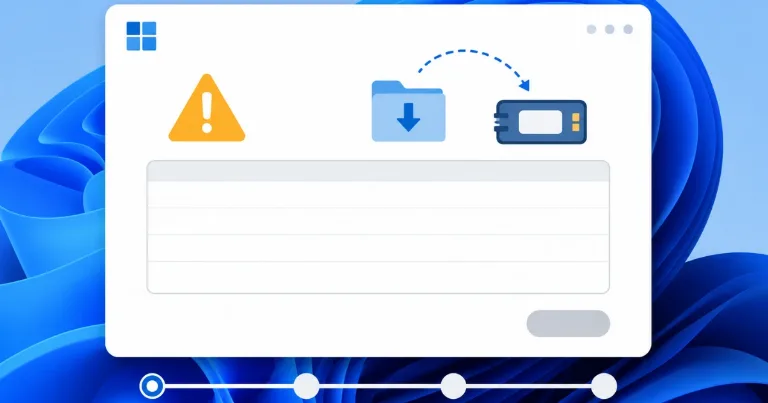
If Windows 11 Setup shows "Install driver to show hardware," do not wipe your SSD right away. The screen can mean two different things: Windows cannot read the USB installer properly, or Windows cannot see the internal drive because a storage controller driver is missing. Remake the USB first, check if the SSD appears in BIOS, then load the right driver only if the drive is still missing inside Windows Setup.
Do this before wiping the SSD
Use this order because it keeps the risky steps at the end. Deleting partitions or changing BIOS storage settings too early can make a normal install problem worse.
- Remake the Windows 11 USB installer.
- Try another USB port, preferably a rear motherboard port on a desktop PC.
- Check whether the SSD appears in BIOS or UEFI.
- If BIOS sees the SSD, load the correct storage driver during Windows Setup.
- Only change VMD, RST, RAID, or AHCI settings if your device support page tells you to.
- If BIOS does not see the SSD at all, stop and check the SSD connection, M.2 slot, BIOS detection, or the SSD itself.
That order is the main fix. A missing drive inside Windows Setup is not always a dead SSD, and it is not a reason to wipe everything right away.
Remake the Windows USB installer first
Start with the installer because the USB can be the problem. If the bootable drive was created badly, Windows Setup can stop at the driver screen even when the internal SSD is fine.
Use Microsoft's Windows installation media page if you can. If you prefer Rufus, follow my Windows USB install with Rufus steps and make a fresh installer instead of reusing the same USB again.
On a desktop PC, also try a rear USB port on the motherboard. Front case USB ports can be less reliable during setup, so use the direct motherboard port for this test.
Check BIOS before hunting for drivers
Restart the PC and check BIOS or UEFI before spending time on drivers. Look for your SSD under storage, NVMe, M.2, or boot device information. The exact menu name depends on the laptop, desktop, or motherboard brand.
If BIOS cannot see the SSD, Windows Setup usually will not fix it with a driver. At that point, check whether the drive is seated correctly, try another M.2 slot if you have one, or test the SSD if possible.
If BIOS does see the SSD but Windows Setup does not, then the storage driver path makes sense.
Load the storage driver only if BIOS sees the drive
Now check the support page for your exact laptop, desktop, or motherboard model. The exact model is very important because a driver for a different ASUS, Dell, HP, Lenovo, MSI, or Gigabyte device may not work.
On the support page, look for names like storage driver, Intel RST driver, Intel VMD driver, RAID driver, or pre-install driver. Download it on another computer, extract it, and copy the extracted folder to a USB drive.
When you extract the driver, look for folders that contain .inf files. Windows Setup usually cannot load a normal driver .exe by itself from the install screen.
This is common on many Intel systems with RST or VMD. Intel's own support notes explain that Windows 10 or 11 may need the Intel RST storage driver before the installer can detect the drive.
Not every PC should use Intel RST, though. If your PC uses AMD, do not download Intel RST. Use the storage or RAID driver from your laptop, desktop, or motherboard support page, especially if RAID is enabled.
Some newer Intel systems may not need manual IRST loading when using Windows 11 24H2 or later, so the device support page is still the best place to check what your model actually needs.
Be careful with BIOS storage settings
Do not delete partitions just because the drive is missing. Only do that if your files are backed up and you are sure you want a clean install.
Also, do not change VMD, RST, RAID, or AHCI settings randomly. Changing the right setting can help on some PCs, but changing the wrong one can stop an existing Windows install from booting.
For most people, the smart path is clear: rebuild the USB, confirm BIOS sees the SSD, then load the model-specific storage driver if Windows Setup still cannot see the drive. Wiping partitions should be the last thing, not the first click.