

How to Create a Hostinger MySQL Database and Connect It to a PHP Script

By Alex David Du · Published
Alex writes about gaming, tech, and simple online income ideas, and builds projects that bring ideas to life.
A PHP script is not fully connected to your hosting until its database is set up. The files handle the website, but MySQL usually stores the users, settings, orders, admin login, and other data the script needs. In this article, you will learn how to create a MySQL database in Hostinger, save the correct details, import the SQL file, and connect everything to your hosted PHP script.

Hostinger has provided fast, reliable hosting since 2004 and is easy to set up.
Get 20% off using the link below.
Get 20% off at HostingerCreate the database in Hostinger
Log in to your Hostinger account and go to Websites.
Open All Websites, then choose the website where you want to install the PHP script.
On that website panel, click Dashboard.
Inside the selected website dashboard, look at the left menu. Under the search box, find Databases.
Under Databases, click Management.
This is where you can create the MySQL database for your PHP script.
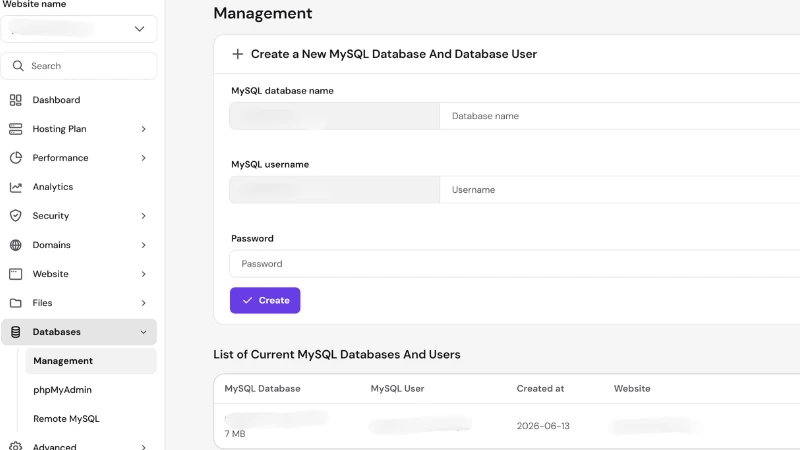
Hostinger will ask for:
MySQL Database Name
MySQL Username
Password
For the password, click the three-dot icon and use the generator to create a strong password.
After the password is generated, reveal it and copy it somewhere safe. You will need it later when connecting the PHP script.
Once the database name, username, and password are filled in, click Create.
At this point, the database is ready.
Before moving on, save the database name and username exactly as Hostinger shows them.
For example, if Hostinger shows:
u35554888_Mydatabase
Do not save only:
Mydatabase
You must use the full database name later, including the Hostinger prefix.
The same rule applies to the MySQL username.
Your saved details may look like this:
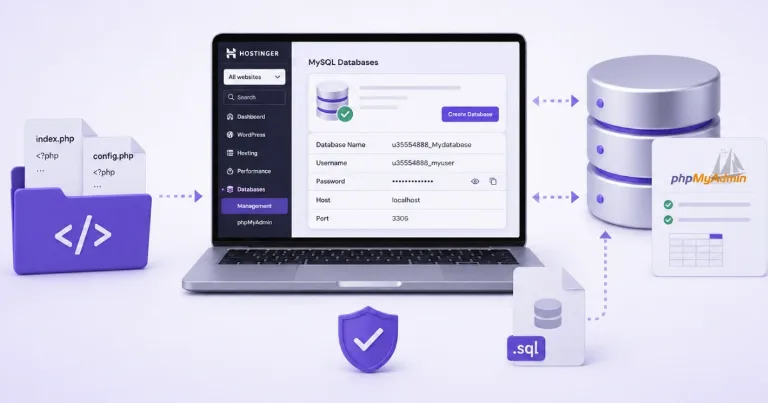
Database name: u35554888_Mydatabase
Database username: u35554888_myuser
Database password: YourGeneratedPassword
Database host: localhost
Database port: 3306
Upload the PHP script and import the SQL file
Upload the PHP script files through Hostinger File Manager.
For most websites, the files should be uploaded to:
public_html
If you want the script inside a subfolder, create a folder such as:
public_html/app
The script would then be accessible at:
yourdomain.com/app
Before uploading, check the script documentation. Some scripts keep the real website files inside another folder. Laravel scripts often need extra attention because they use a public folder structure.
Many PHP scripts include a database file ending in:
.sql
This file creates the database tables the script needs.
To import it:
- Open phpMyAdmin in Hostinger.
- Select the database you created.
- Click Import.
- Choose the .sql file.
- Start the import.
If the import works, you should see tables inside the database. These may include tables for users, admins, settings, orders, products, or other script data.
If your script does not include a .sql file, check its documentation. Some installers create the tables automatically during setup.
Large ZIP file uploads
Large ZIP files can sometimes fail to upload or extract through Hostinger File Manager. You may see a 500 Internal Server Error during extraction.
This does not always mean the script is broken. The problem can come from file size, folder structure, upload limits, or File Manager timing out.
If this happens, use Hostinger’s SSH access instead of extracting the ZIP file in File Manager. In hPanel, go to Advanced > SSH Access, enable SSH, then connect from a terminal app such as Command Prompt, PowerShell, Terminal on macOS, or another SSH client.
After connecting through SSH, go to the folder where the ZIP file is uploaded and unzip it from the command line. The database setup stays the same. Only the upload or extraction method changes.
Connect the script to the database
After the files and database are ready, connect the PHP script to MySQL.
Different scripts store database settings in different places. Common options include .env, config.php, database.php, db.php, or a browser installer page.
If your script uses a .env file, the database section may look like this:
DB_CONNECTION=mysql
DB_HOST=localhost
DB_PORT=3306
DB_DATABASE=u35554888_Mydatabase
DB_USERNAME=u35554888_myuser
DB_PASSWORD=YourGeneratedPassword
Replace the example details with the real details from Hostinger.
Make sure there are no spaces around the equals sign.
Correct:
DB_HOST=localhost
Incorrect:
DB_HOST = localhost
Some scripts use a PHP configuration file instead. You may see settings like this:
$db_host = "localhost";
$db_name = "u35554888_Mydatabase";
$db_user = "u35554888_myuser";
$db_pass = "YourGeneratedPassword";
If your script has a browser-based installer, open your domain and enter the same database details when prompted.
For Hostinger, the database host is usually:
localhost
And the database port is usually:
3306
After installation, remove the install folder if the script tells you to. Leaving it online can create a security risk.
Common database connection mistakes
If the script cannot connect to the database, check these first:
- The database name includes the full Hostinger prefix.
- The MySQL username includes the full Hostinger prefix.
- The password was copied correctly.
- The SQL file was imported into the correct database.
- The database details were added to the correct configuration file.
- The PHP version matches the script requirements.
The most common mistake is using a shortened database name.
Wrong:
Mydatabase
Correct:
u35554888_Mydatabase
Before testing the website, confirm that the database exists, the SQL file has been imported if required, and the correct database details have been added to the script.
If the homepage loads and the admin area works, the PHP script is connected to the Hostinger database.