

Stripe Card Payment Declined: How to Fix It

By Alex David Du · Published
Alex writes about gaming, tech, and simple online income ideas, and builds projects that bring ideas to life.
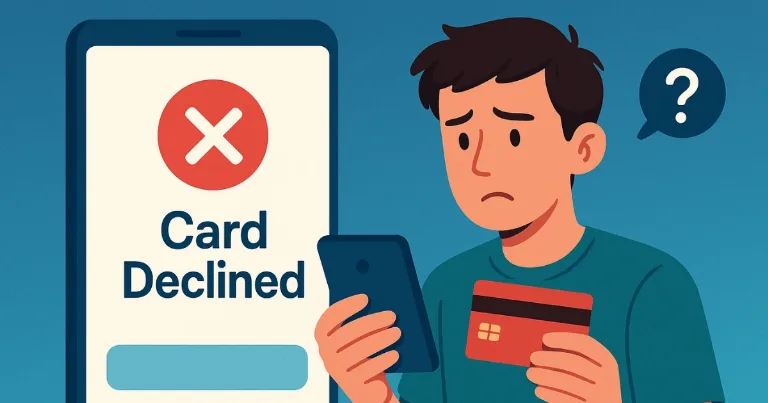
I have hit this error more times than I want to admit. Card declined, no clear reason, the site says contact your bank. I had money in the account. I retried. Still failed. One of those times I was trying to pay for a steam gaming at midnight, tried three times, called the bank, and still got nowhere until I switched how I paid. If you are stuck in that loop, this is the clear, friendly guide I wish I had the first time.
I will walk you through what I do now, in order, and why it works. Just the steps that give you the best chance to pay and move on, whether you are on iPhone or Android.
1. How to Fix It, Do This First
Follow these in order. Stop after the first one that works.
-
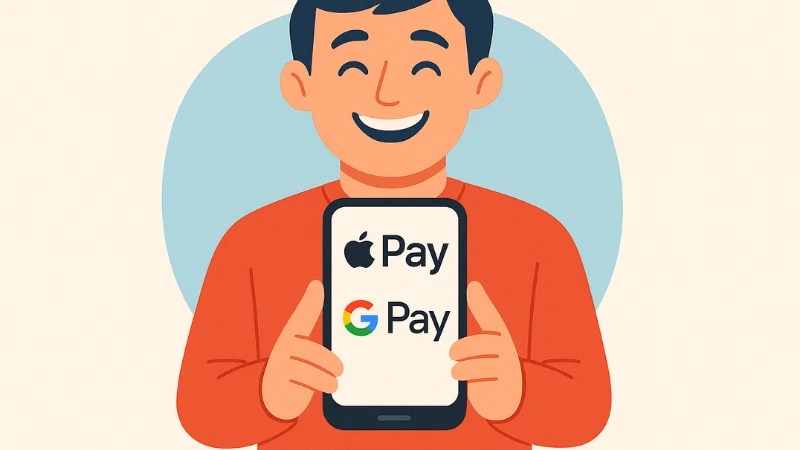
Try a mobile wallet, Apple Pay or Google Pay
This works for me most of the time. Wallet payments pass extra checks during checkout and often succeed when plain card entry fails. If you already use a wallet, pay with it now. If not, add the same card to your wallet, then try again. There is no extra fee to pay with Apple Pay or Google Pay. If your card has its own fees, like foreign transaction, those still apply because the wallet uses your card under the hood. -
Re-enter billing details exactly
Type your name, street, city, ZIP or postal code, and CVC exactly as they appear in your bank app or card statement. Even a tiny mismatch can trip a decline. Copy paste if you can. -
Switch device or browser
Use your phone if you were on desktop. Try Safari or Chrome. Allow popups, do not block cookies, and if you use a VPN, turn it off for this try. If Wi-Fi feels flaky, try mobile data. -
Retry one more time after a short pause
Wait a minute, then try again once. If it fails again, do not keep trying back to back. Move to the next step. -
Ask the seller to allowlist you
Some stores use fraud rules that can block good customers by mistake. Tell support you are getting repeated declines and ask if they can allowlist your email or the last four digits of your card. If their setup does not support that, ask for a one-time invoice or a different checkout link. -
If you saw a verify window, try again on mobile
That bank verification step is called 3D Secure. If it stalled or never showed, try again on your phone. Make sure the popup is allowed and you are on a steady connection. -
Try a different card type or enable online and international
Some cards block certain purchases by default. If you can, try a debit or a credit from another bank. You can also call your bank and ask them to enable online or international purchases, then retry.
Note: Apple Pay and Google Pay do not guarantee success if the card is declined for insufficient funds or issuer restrictions.
2. Why Stripe Shows “Card Payment Declined”
Here is what usually sits behind the vague message.
-
Generic issuer declines
Banks sometimes send a generic no. It shows up as things like do not honor or try again later. It does not mean your card is bad. It means the bank did not like that attempt. -
Verification not completed
In some regions the bank wants you to prove the payment is you. If the 3D Secure step fails or never appears, the payment can be declined. -
Address or CVC mismatches
If your ZIP or postal code does not match what the bank has, or the CVC is off by a digit, many banks will reject the payment right away. -
Fraud rules and risk scores
Stores can add rules that block risky looking payments, even when the bank would have said yes. If support says they do not see your attempt, you might be blocked before it reaches the bank. -
Card or region restrictions
Some cards do not allow certain types of online payments, recurring charges, or cross border transactions. That leads to instant declines until the bank flips a switch.
3. Other Ways to Pay When the Card Keeps Failing
If the steps above still do not work, try one of these paths.
-
Ask for a one time payment link or invoice
The seller can send a direct invoice or a different checkout page. Sometimes that route clears the rules that were blocking you. -
Use a different funding source
If you were using a prepaid or a virtual card, switch to a debit or a credit with your name on it. Those verify more cleanly. -
Try the mobile wallet again
If you fixed your address or finished a bank verification, the wallet path may now work on the next try.
4. When to Contact Your Bank or the Seller
-
Call the bank when
You suspect a block on online or international purchases, you changed addresses recently, or you see a security alert in your bank app. Ask if they can approve the next attempt from that merchant and enable online and international if needed. -
Message the seller when
You have tried the steps above and still get a decline, you need an allowlist entry, or you want a one time payment link. Give them your email, the last four digits of your card, and the approximate time of the failed attempt so they can check their logs.
Bottom Line
Apple Pay or Google Pay usually fixes this. If it does not, check your details, switch device or browser, retry once, then ask the seller to allowlist you or send an invoice. Call the bank to see if a block is in place and ask them to enable online or international and approve the next attempt. If nothing works, try a different card. That covers the common cases without wasting time.