
Does Verifying Steam Game Files Delete Mods? What Actually Happens

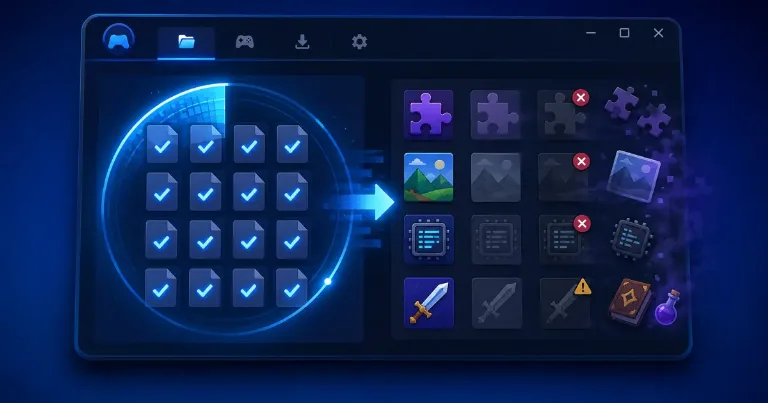
If Steam tells you to verify game files, do not click it blindly if your game is modded. Verifying files is basically Steam's repair check. It can fix broken or missing game files, but it can also replace modded files if those mods changed the official game folder.
Verifying Steam files can break some mods
The short answer is yes, it can affect mods, but it depends on how the mod was installed.
Steam checks the official game files and compares them with the version it expects. If a file is missing, damaged, or changed, Steam may download the original file again.
That is good when the game is crashing because one of its normal files broke. It is not so good if your mod works by replacing that same file.
For example, you install a mod that changes a file inside the game folder, like a texture file, script file, config file, or game data file. Then you verify the game through Steam.
Steam may see that file as wrong and replace it with the official version. So the mod is not always deleted like trash from your PC, but it can stop working because Steam put the clean game file back.
What Steam verification actually does
Steam verification is for checking the game install, not for managing mods. On Steam's verify game files page, the process is listed under the Installed Files menu and Steam says the check can take several minutes.
You find it by going to:
Steam Library > right-click the game > Properties > Installed Files > Verify integrity of game files
After that, Steam scans the install and downloads anything it thinks is missing or broken. A large game can take longer, especially if Steam has to download files again or your drive is slow. If the repair turns into a long download, my article on slow Steam downloads may help with that part.
This can help with crashes after an update, missing textures, broken official files, failed downloads, launch errors, or game files changed by mistake.
But Steam is not checking whether your mod setup is correct. It only cares about the official files. That is why a clean game and a modded game are not always supposed to look the same.
Which mods are safer and which ones are risky?
Mods installed outside the main game folder are usually safer. For example, a mod manager may keep mod files in its own folder and load them without changing the Steam install directly. In that case, verifying the game is less likely to remove the mod files themselves.
Mods are more risky when they are placed directly inside the Steam game folder, especially if they replace original files.
Here is the simple way to think about it:
| Mod type | What can happen |
|---|---|
| Mod replaces official game files | Steam may replace those files |
| Mod adds extra files to the game folder | Steam may leave them, but the mod can still break |
| Mod manager keeps files outside the game folder | Usually safer, but check the mod manager first |
| Workshop mod | Usually stays subscribed, but the game may need to reload it |
Some games also update to the newest version when you verify files. That can break older mods even if the mod files are still there.
Skyrim, Fallout, Cyberpunk 2077, Baldur's Gate 3, The Sims 4, and many other modded games can behave differently because their mod systems are different.
What to do before verifying a modded Steam game
Before verifying, back up the files you care about. If you are not sure where your mods are, check the mod page or the mod manager first. Look for notes about Steam verification, game updates, and file replacement.
A safe order is:
- Back up your save files if the game does not use Steam Cloud.
- Open your mod manager and disable mods if it recommends that.
- Back up any files you manually placed in the game folder.
- Verify the game files in Steam.
- Launch the game once without changing everything at the same time.
- Reinstall or redeploy your mods if they stop working.
Do not panic if a mod disappears from the game menu after verifying. The files may still exist, but the loader, script extender, config file, or game version may need fixing.
For games with heavy modding, verifying files should not be your first click every time something breaks. Sometimes the better move is to check the mod manager, update the mod, or read the mod page first.
Steam verification is useful when the actual game install is broken. Just remember that a modded install is not the same as a clean install, so back up first if your setup took time to build.