

How to Link CSS to HTML: Explained with Example


By Alex David Du · Updated
Alex writes about gaming, tech, and simple online income ideas, and builds projects that bring ideas to life.
If you’re new to web development, one of the first things you’ll need to learn is how to link CSS to HTML. This step is what connects your website’s structure (HTML) to its style (CSS). Without it, your pages will look plain and unstyled. The good news? It only takes one simple line of code to make the connection work.
What Is CSS and Why Use It?
CSS stands for Cascading Style Sheets. It’s the language used to style your HTML content. While HTML tells the browser what’s on the page, like headings, paragraphs, and images, CSS tells it how those things should look.
Want to center text? Change a background color? Make buttons look clickable? That’s all CSS. Without it, every webpage would look like a Word document from 1995, plain and kind of boring.
In short:
HTML = content
CSS = design
Now that you know why we use CSS, let’s move on to how you actually link it to your HTML.
How to Link CSS to HTML (The Easy Way)
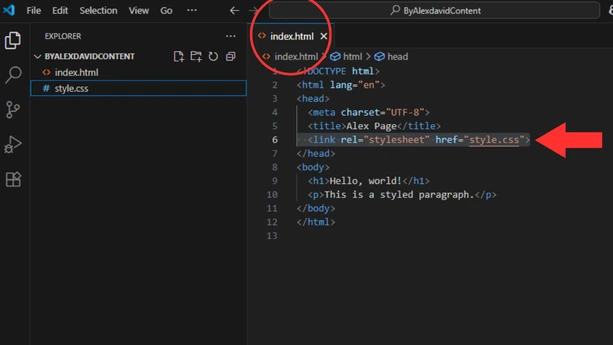
To link a CSS file to your HTML, you just need one line inside the section of your HTML file. That line looks like this:
Here’s what that means:
-
rel="stylesheet"tells the browser this is a CSS file. -
href="style.css"points to the CSS file’s name and location.
Now here’s the important part:
👉 Your CSS file must be in the correct folder, or it won’t work.
If your HTML file (let’s say index.html) and your CSS file (style.css) are in the same folder, then href="style.css" is correct.
Example folder structure:
But what if you’ve organized your CSS into a separate folder, like this?
In that case, you need to update the path in your HTML:
So basically, href tells the browser where to find the CSS file, starting from the HTML file’s location.
Full Example (Ready for Screenshot)
Here’s a simple setup you can try on your own computer. If you’re using Visual Studio Code (a popular free code editor), it’s perfect for this, it highlights your code, helps catch mistakes, and makes editing easy. And if you want to see your HTML, CSS, and JavaScript updates live as you save, check out my easy guide to live preview with VS Code.
📄 index.html
body {
background-color: #f0f0f0;
font-family: Arial, sans-serif;
}
h1 {
color: #007bff;
}
p {
color: #333;
font-size: 18px;
}
🎨 style.css
body { background-color: #f0f0f0; font-family: Arial, sans-serif;}h1 { color: #007bff;}p { color: #333; font-size: 18px;}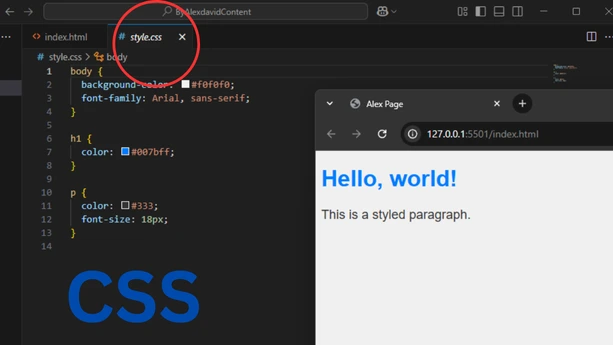
Common Mistakes to Avoid
When linking CSS to HTML, a few small mistakes can cause your styles to not show up. Here are some common ones to watch out for:
-
Wrong file path in
href
If the path doesn’t exactly match where your CSS file is, the browser won’t find it. Double check folder names, spelling, and capitalization. -
CSS file not saved or named incorrectly
Make sure your CSS file is actually saved with a.cssextension and named exactly as you wrote in your link. -
Not putting the tag inside the
The tag should always be inside the tection, otherwise the browser might ignore it.
-
Caching issues
Sometimes browsers cache old versions of your CSS. Try refreshing the page hard (Ctrl+F5 or Cmd+Shift+R) if changes don’t appear. -
Syntax errors in your CSS
Even a missing semicolon or curly brace can stop styles from working. Use a code editor that highlights errors.
By keeping these in mind, you’ll avoid the usual headaches and keep your styling nice and simple.
Quick recap
Put the link tag in the head. Point href to the real path. Save both files. Reload the page. If styles do not show, check the folder names, the file name, and your CSS braces and semicolons. Keep your files tidy and you are set.